
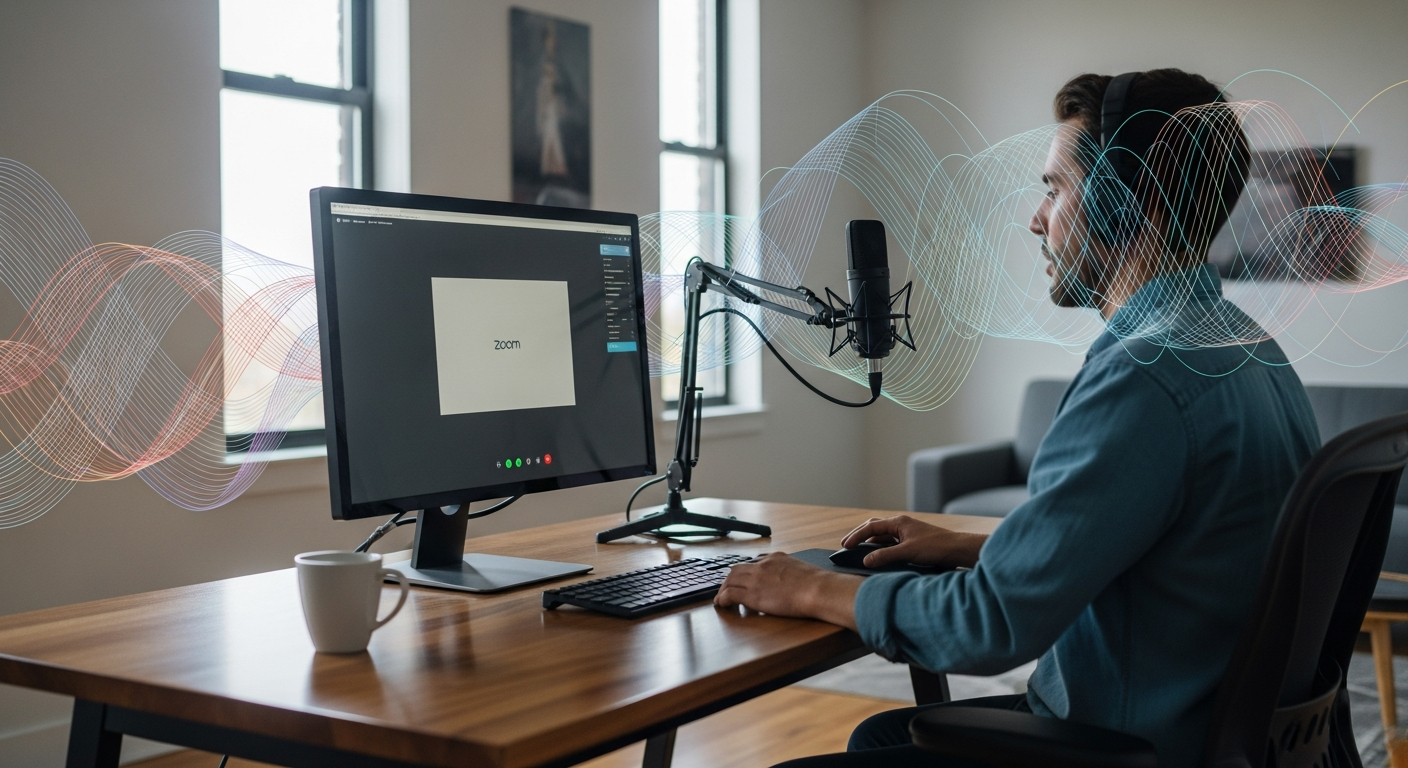
Echo during a Zoom call can feel incredibly frustrating. You're trying to stay focused, maybe present something important, and suddenly voices begin looping or bouncing back at you. Conversations become confusing. Clients lose track of the discussion. Meetings feel longer and more exhausting than they should. At Sound Pro Solutions, we often help customers tackle echo issues that come from the room itself rather than the software. People are surprised by how much of their audio trouble is caused not by Zoom, but by the environment they're calling from. Hard surfaces, bare walls, glass, high ceilings and empty corners all create reflective spaces that amplify echo in ways you don't notice until your microphone reveals them.
Interestingly, we see many homeowners researching topics like what are sound isolation clips when they first start improving their sound environment. And while clips help with structural noise and vibration, echo is a different beast. Echo is about reflections inside the room, not sound leaking through walls. Once you understand that distinction, solving Zoom echo becomes a lot easier and much more predictable. Your voice should feel close, natural and clear, not like it's bouncing around a hallway.
Why Is Zoom Echoing During Your Calls
Zoom echo typically happens when your microphone picks up sound that has already been played through your speakers or bounced off the surfaces in your room. In other words, the microphone hears your own voice twice. That duplicated sound creates a delayed reflection that your brain interprets as an echo. It can be mild or incredibly disruptive, depending on your room.
Here's what usually causes it: two people in the same room, both unmuted, loud external speakers sitting too close to the microphone, microphones with overly sensitive gain settings, or rooms with too many reflective surfaces. Even a beautifully furnished home office can behave like a small echo chamber if it's filled with glass, drywall and hard floors. Every surface you see can reflect sound back into the mic.
Audio is unforgiving. A tiny placement mistake or an overlooked setting can turn a clean voice into something muddled and hollow. That's why the most effective solutions combine smart software adjustments with small physical changes in your space. And when you pair that with proper acoustic treatment, your Zoom calls can genuinely sound studio-quality.
How to Get Rid of Echo on Zoom Meeting
Solving echo doesn't have to be technical or complicated. In fact, most improvements happen through simple changes that take just a few minutes. Before you invest in equipment or redesign your workspace, try these practical fixes that often deliver immediate results.
Use Headphones and Adjust Device Placement
Headphones are the fastest, most reliable way to eliminate Zoom echo. When audio plays directly into your ears, it no longer bounces around the room or feeds back into the microphone. Your voice becomes cleaner and more direct. Even inexpensive headphones can make a dramatic difference.
You should also pay attention to placement. Keep your microphone away from laptop speakers and avoid letting your device rest near a wall that reflects sound heavily. A microphone pointed toward an open space will always perform better than one pointed toward a reflective backdrop. Small changes in positioning-just a few inches-can reduce echo more than people expect.
Another subtle but meaningful fix is lowering your speaker volume. If the microphone barely hears your speakers, it won't capture any reflections. It's a quick adjustment that often solves half the problem instantly.
Check Zoom Audio Settings and Updates
Zoom has built-in features to reduce echo, but many people never explore them. Start by opening your Audio settings and running the automatic test. Zoom will detect feedback loops and adjust levels accordingly. Enable the "Suppress background noise" option and make sure "Automatically adjust microphone volume" is active unless you're using a high-end mic.
Keeping Zoom updated matters more than you might think. Each update includes improvements to echo cancellation and voice clarity, so outdated versions may struggle where newer ones perform flawlessly. The same goes for your operating system and audio drivers. A simple update can fix issues you assumed were hardware related.
If you use external microphones, check that the right input is selected. Sometimes Zoom defaults to a built-in laptop mic instead of the one you intended to use. This leads to unwanted reflections because built-in microphones tend to point directly at reflective surfaces like your desk or monitor.
Mute Participants with Background Noise
Echo isn't always created by your own device. It might come from someone else on the call. A participant with a loud room, poor mic placement or open speakers can introduce echo into the entire meeting. Muting them reduces reflections for everyone, not just for them.
Encourage your team to mute themselves when they're not speaking. It keeps the call cleaner, reduces crosstalk and eliminates echo loops created by background noise. In larger meetings, Zoom's "mute all" tool is incredibly effective, especially when people join from unpredictable environments like kitchens, hallways or shared office spaces.
Many teams create a quick Zoom etiquette checklist that includes muting, using headphones and running audio tests before important calls. These small habits improve call quality for everyone and save a lot of time that would otherwise be spent troubleshooting.
How to Stop Echo on Zoom with Acoustic Treatment
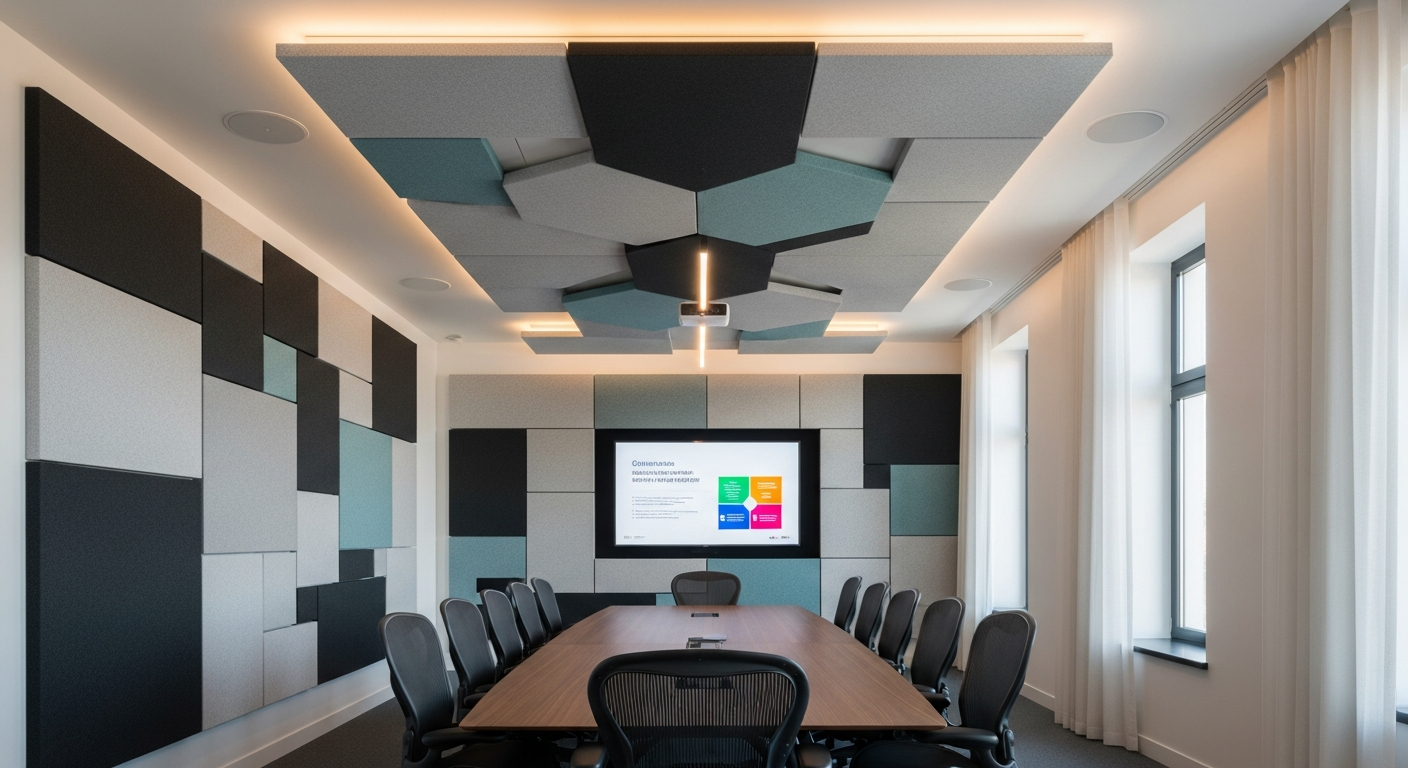
Even though software fixes help, the truth is that echo is fundamentally a room problem. Zoom can suppress noise, but it can't erase reflections bouncing between hard surfaces. That's where acoustic treatment makes all the difference. You don't need to turn your home into a recording studio. A few well-placed panels can transform the way your voice carries through the space. People immediately hear the difference. Your voice stops sounding hollow or distant. Calls feel warmer, closer and more personal.
The idea is simple. Echo exists because sound waves hit a rigid surface and bounce back. Acoustic treatment interrupts that bounce. Panels absorb a large portion of the wave before it returns to your microphone. The result is a smoother, more controlled sound that feels professional even in a small room. At Sound Pro Solutions, we walk customers through this process all the time, and the reaction is almost always the same. "I didn't realize it could sound this good at home." Once the reflections disappear, your microphone performs the way it was designed to.
Using Acoustic Panels to Absorb Reflections
Acoustic panels are the most effective tool for reducing echo. They're designed to absorb reflections that make voices sound thin or metallic on Zoom. Most rooms have multiple reflection points. Hard drywall, windows, closets, shelving and even ceilings contribute to echo. Panels soften these surfaces, turning sharp reflections into controlled, natural decay.
High-quality panels don't just reduce echo. They improve speech clarity. Your sentences become easier to understand, and you stop competing with your own voice bouncing off the room. If you've ever heard someone speak from a bright, empty room, that "ringing" sound is exactly what panels eliminate. And unlike foam squares, modern acoustic panels look clean and professional. Many customers choose neutral colors like white, beige or gray for home offices because they blend into the environment and don't distract on camera.
Strategic Panel Placement for Home Offices
Panel placement matters. You don't need to cover every wall. Instead, target the areas where reflections hit the microphone first. Place panels behind your monitor or camera, along the wall directly behind you, and on the side walls where sound tends to ricochet rapidly. These three zones typically account for most of the echo in a home office.
Smaller rooms benefit greatly from a ceiling panel as well. Ceilings often create more echo than people expect because the surface is large and completely reflective. One overhead panel can soften the entire sound of the room. If you take a lot of video calls, consider positioning panels in the camera frame. It creates a polished, modern appearance that conveys professionalism without any extra effort.
We advise customers to start with a small set-three to six panels-and evaluate the improvement. Many people are surprised by how quickly the acoustics change. If needed, you can always expand treatment gradually to reach the exact level of clarity you want.
Treating Conference Rooms for Better Calls
Conference rooms are notorious for echo. Glass walls, large tables, tile floors and empty corners create strong reflections that Zoom microphones pick up immediately. Even expensive conference hardware struggles in poorly treated rooms. That's why businesses often invest in acoustic treatment to create a more controlled, comfortable environment for virtual meetings.
Panels around the perimeter of the room help tremendously. Softening the first reflection points reduces echo instantly. Adding panels behind the seating area improves clarity for remote participants who otherwise hear a wash of reflections. In very large rooms, adding ceiling clouds or baffles creates powerful, evenly distributed absorption. The room feels calmer. Voices sound fuller. Meetings become easier for everyone.
Acoustic treatment also enhances in-person communication. People stop talking over each other because sound no longer lingers in the space. The room simply works better, whether you're in it or connecting remotely.
Preventing Echo on Zoom Calls in Any Environment
Preventing echo is a mix of smart habits and good room design. Once your space is treated acoustically, everyday calls become more predictable. However, even untreated environments can be improved with a few simple strategies. Keep your microphone pointed away from reflective surfaces. Lower your speaker volume. Use headphones when you're in a noisy environment. Encourage others to mute themselves when not speaking.
If you take calls in multiple locations, consider carrying a compact USB microphone with directional pickup. It limits unwanted reflections by capturing only what's directly in front of it. And if you're working in a temporary space like a kitchen or shared office, placing a soft item-like a jacket or pillow-behind your laptop can reduce reflections enough to keep your voice clear.
The combination of thoughtful hardware choices, smart Zoom settings and acoustic treatment delivers the best results. Once you reduce the reflections in your room, your microphone finally works at its full potential. You sound more confident, more present and far more professional on every call.
Recent posts


